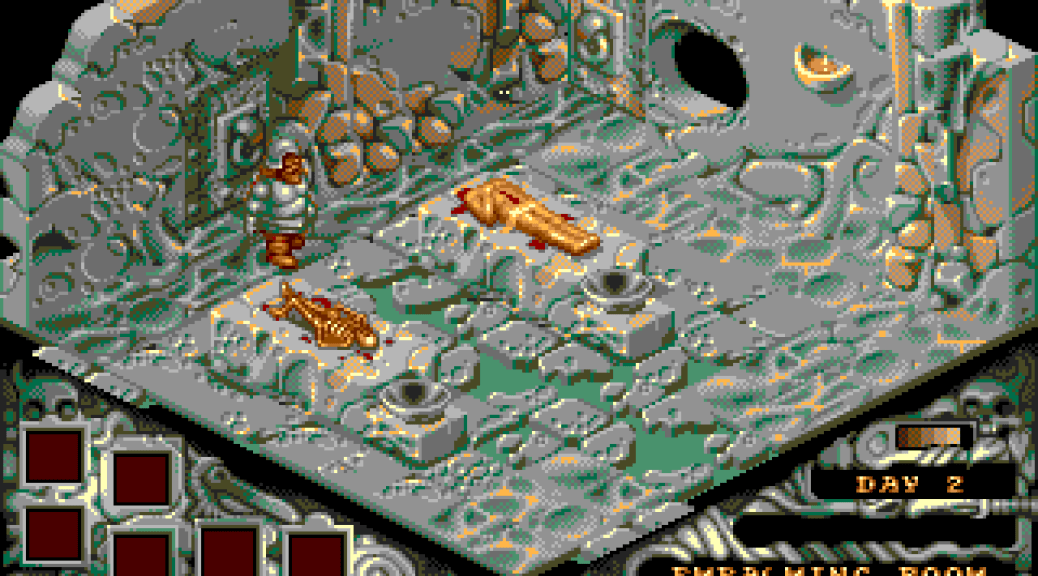
Created by The Bitmap Brothers and published by Image Works in 1990, Cadaver is an isometric platform/action game with puzzle elements, but with Dan Malone‘s distinctive artwork adorning it. We’re looking at the Amiga version here today, but it also came out for the Atari ST and PC MS-DOS.
In Cadaver you play as Karadoc, a dwarf mercenary on a quest to loot Castle Wulf and destroy the evil necromancer, Dianos. Karadoc is controlled entirely with a joystick, with the Space bar being used to bring up the rucksack. This pauses the game and allows you to manipulate keys, potions, food, and so on, all via a system of small icons. These icons are “smart”, in that they change depending on the item held, so they’re context-sensitive. That also means that there are far too many to remember, so often cause confusion. I’ve posted a list below, if you need help with figuring out what the icons mean.
You can walk, jump, and fight monsters*, and also find and use items that you find while exploring. You can actually carry quite a lot in Cadaver (up to 32 items, initially), but much of what you find is useless, so it’s easy to end up with a clogged-up inventory. To mitigate that, you need to figure out what you don’t need to carry and drop those items. Sometimes you might need to check under some bones, for example, and can either drag them away, or pick them up. If you pick up a pile of bones looking for a key, it makes sense to drop all the unwanted bones afterwards.
Using items in Cadaver is a bit of a faff initially, that is: until you figure out that pressing the “h” key during play toggles the currently held item between held and unheld. Which is very useful. Selecting items in the inventory means having to highlight the picture of the item on the right-hand side of the screen, then pressing up and down to cycle through the items, then holding it, which takes some getting used to.
*=The physical combat in Cadaver is probably the weakest part of the game, and killing monsters is tricky. Mostly because you can only throw things at them, and you only have limited ammo. Throwing swords at monsters seems counter-intuitive, and also doesn’t seem to do a great deal. There are also offensive magic spells in Cadaver, which is where the real fun starts with combat.
Another ‘tricky’ feature in Cadaver is that you have to spend in-game money to make a save… Which is ridiculous. You’d be better off using a crack that gives you free saves, or using quicksaves in an emulator.
Other useful keys to remember are: pressing F1 to view the map (and DEL to center map when open), and F4 to toggle between 8 and 4-directional movement. You can also press Return to bring up a larger view of the inventory, which is very useful.
Cadaver has five large levels in total, and is a game that requires time and experimentation to work through. Either that or you could use a walkthrough.
More: Cadaver on Wikipedia


These are what the icons in Cadaver mean:
Joystick = Returns your character to movement control.
Search = Provides information about an object.
Take = Grabs an object and puts it in the rucksack.
Drop = Drops an object.
Drink = Allows you to drink from an object,such as water from a barrel; drinking a potion activates it.
Read = Allows you to read an object.
Hold = Allows you to hold an object or return it to the rucksack. Some items (such as weapons) need to be held before you can use them.
Cast = Casts a spell on the item being touched.
Switch = Activates objects that behave like switches.
Press = Activates objects that behave like buttons.
Open = Opens and closes containers, such as chests or caskets. You won’t always be able to do it straight away.
Insert = Karadoc is able to insert items into other items simply by touching them, entering the rucksack, choosing the object to be inserted and selecting this icon. Only the right item will be accepted.
Down Arrow = Allows you to drag an item.
Eat = Karadoc can eat any food that he finds. Some food can be used to solve puzzles.
Give = When Karadoc touches certain objects or characters, he may be able to give that object/person an item (for example, feeding a dying man). This is done by touching the recipient, entering the rucksack, choosing the item to give and selecting the ‘Give’ icon. However, if you give an item to something, it cannot be returned even if it was the wrong object – so be careful!

